
Signing PDF documents in Acrobat Reader
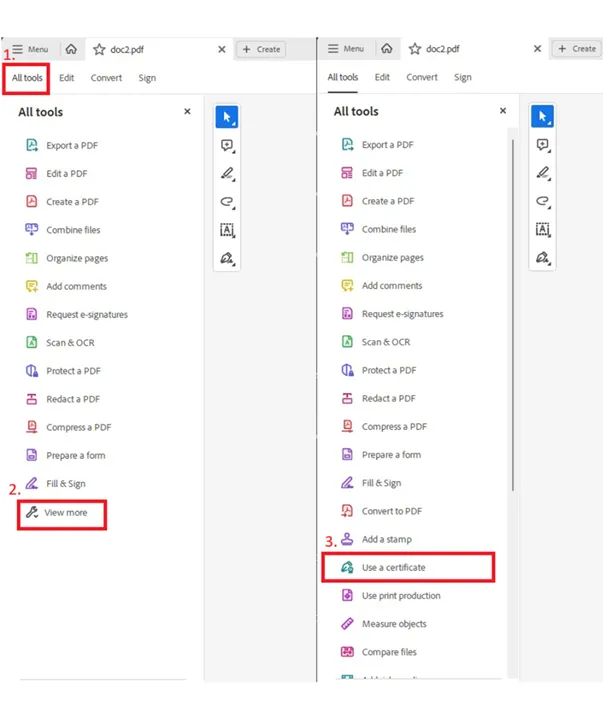
To sign a PDF document, you first need to click "All tools" and then on "View more". In the expanded selection choose the "Use a certificate" option.
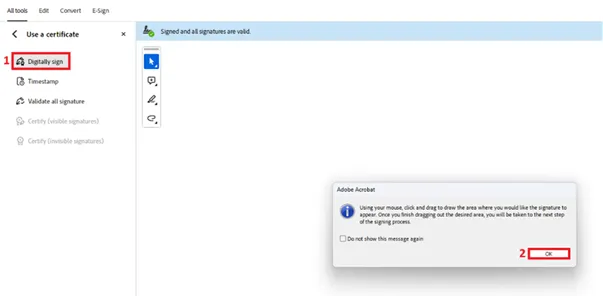
In the next step, click on digitally sign, then a window appears with instructions on how to proceed. After confirming you can select the area where the signature will be displayed.
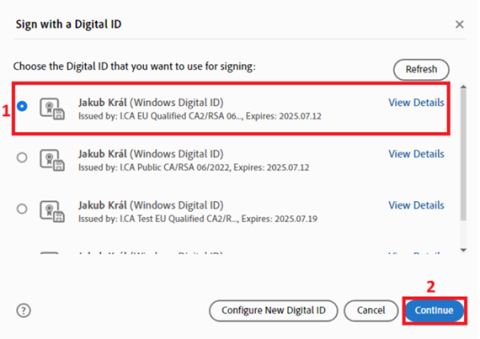
A window will pop up where you can select the certificate you want to use and confirm with the "Continue" button. A qualified certificate is intended for the signature, so you will need to select the certificate that has the "Issued by" I.CA EU Qualified CA2/RSA 06/2022 attribute.
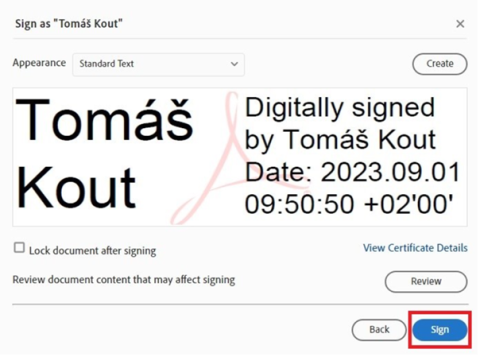
In the next step, confirm the signature with the "Sign" button.
The application will ask you to save a signed document that can be renamed. After confirming the saving of the document, you will be asked for a PIN if the certificate is stored on a smart card.
The application will ask you to save the signed document, which can be renamed. After confirming the saving of the document, you will be asked for a PIN if the certificate is stored on a smart card.