
Instructions for setting up certificate trust in Adobe
This guide describes how to modify the validation of qualified certificates stored in the Windows repository (MacOs), which Adobe has not validated and automatically evaluates as invalid since 1/1/2020. Certificates stored on a smart card do not need to be modified.
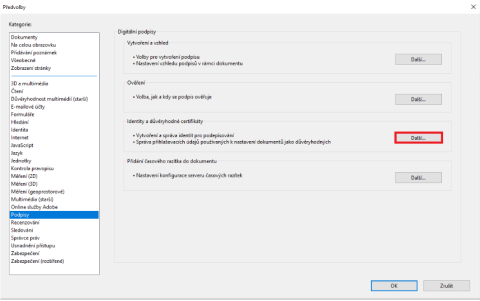
After opening Adobe Reader, click "Menu" and select "Preferences" here. A new window will open, see. picture below, in the "Signatures" column, select the "More" option for Identities and Trusted Certificates.
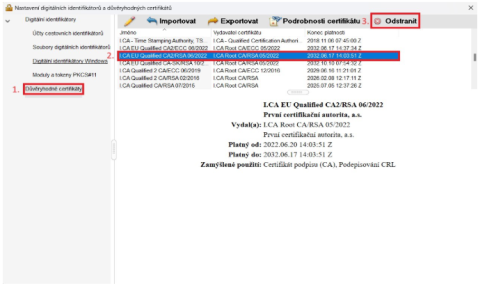
Click on "Trusted Certificates" as shown below. You need to find the root certificate in the list, which is shown in the picture in step 2. After marking the certificate, remove it and close the window.
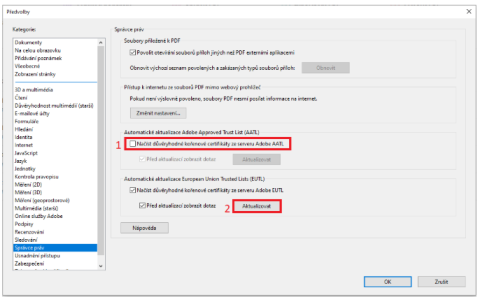
After closing the window, return to the preferences, click on "Trust Manager". Here, in step 1, uncheck Load trusted certificates from an Adobe AATL server, and in step 2, update the list of root certificates from the EUTL.
After restarting the application, the qualified certificates stored in Windows (MacOS) will be verified correctly.