
Using certificates in Mozilla Thunderbird
Import certificate in PFX format
To import a certificate, you will first need to have a backup of the certificate in PFX format. You can make a backup by following the instructions found here: I.CA | Certificate Backup (ica.cz).
Open Mozilla Thunderbird. Click on the gear icon in the bottom left corner.
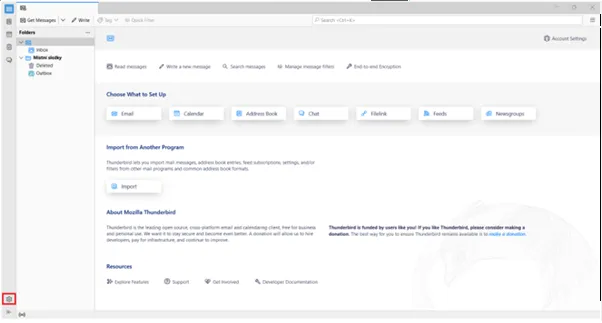
Here, go to "Privacy and Security", scroll down and click on "Manage Certificates".
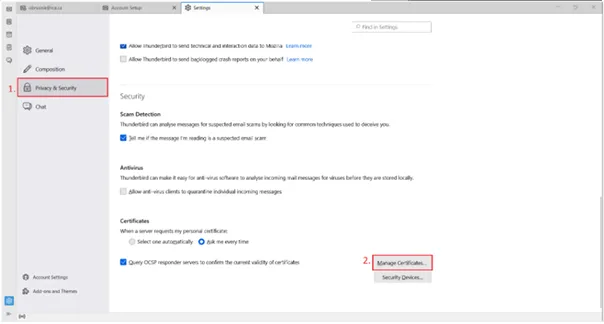
A window will open where you click on the "Your Certificates" tab at the top and select "Import"

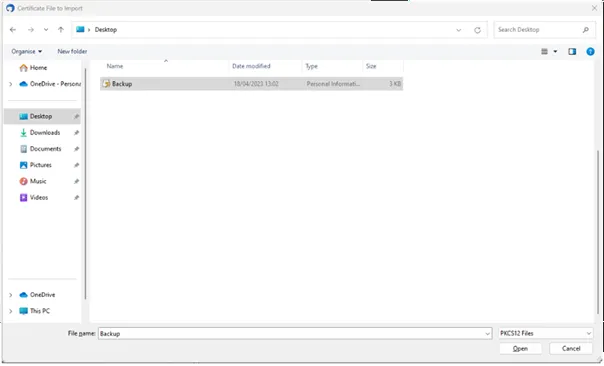
In the following window set the path for the backup file of the certificate in PFX format and confirm your selection.
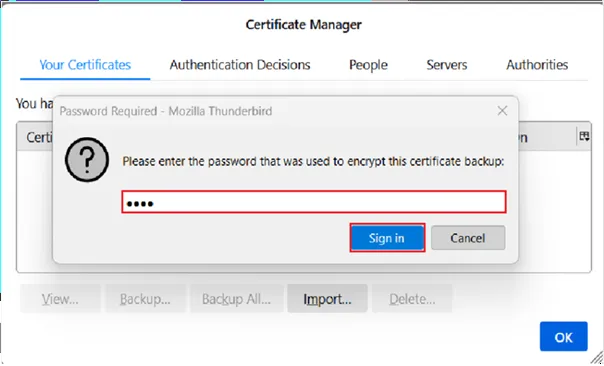
After selecting the file, you need to fill in the certificate backup password that was set when the backup was created.
Introduction of support for certificates stored on the Starcos smart card with the I.CA SecureStore application
Open Mozilla Thunderbird. Click the gear icon in the bottom left corner.
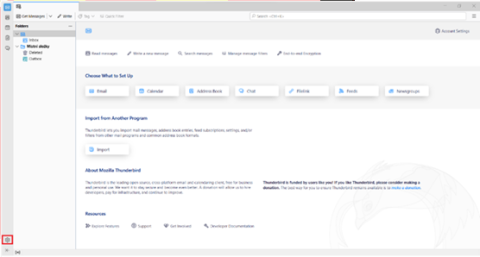
Here, go to "Privacy & Security", scroll down and click on "Security Devices".
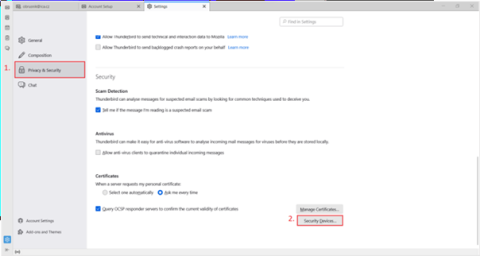
A new window will open, in which you click on "Load" on the right. In the new window you can choose the name of the module and then choose "Browse".

You will need to set the path to the PKCS11 library in the computer's storage. The path to the library is as follows: C:\Windows\System32\SecureStorePkcs11.dll

After setting the path to the library, confirm the following window.

On the left side of the window, you will see the module you have set up, where you will see the name of the reader you clicked on, and on the top right you will click "Log In". In the password window, enter the PIN for the card and confirm the login.

Setting trust for root certificates
Click on the gear icon in the bottom left corner.
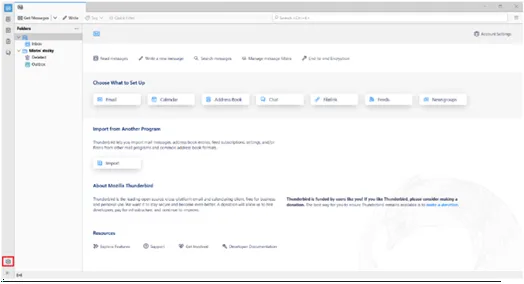
Here, go to "Privacy and Security", scroll down and click on "Manage Certificates".

In the following window, go to the „Authorities“ tab and find the root certificates from the First CA in the list. The list should be sorted alphabetically. Highlight the certificate in the image below and select "Edit Trust". In the new window, check all the trust setting options and confirm. Repeat the process for the other root certificates.

Assign a certificate to a user account
In the open application, click the gear icon in the bottom left corner.
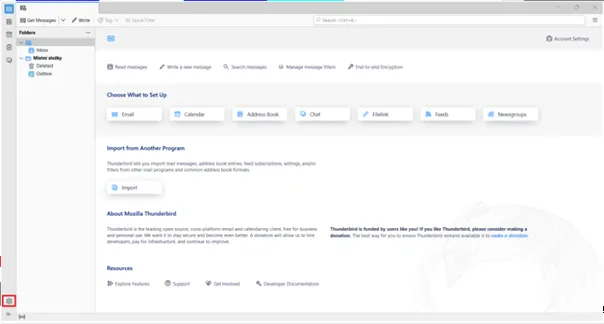
Select "Account Settings" at the bottom left.

In the account settings on the left, select "End-to-end encryption". In the "Personal certificate for electronic signature" box, click "Select". A new window will open for you to select a certificate. In the top row you can switch certificates and in the details you can check if you are selecting the correct certificate. Once you have selected a certificate, confirm your selection. Always select a qualified certificate for signing.

After confirming the certificate selection, you will be presented with a menu to set the encryption certificate. If you will not encrypt, you can decline the offer. Alternatively, the encryption certificate can always be set.
A commercial certificate is set for encryption. Then check the option "Sign unencrypted messages" below.

Signing an e-mail message
If you don't have a "Sign" button in your new message, you can add one by customizing the toolbars.
When you right-click on a toolbar, a menu will appear where you select "Customize...".
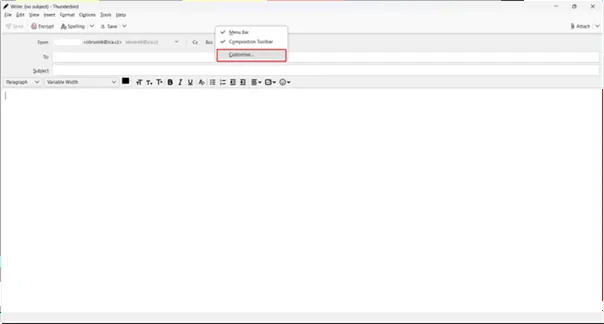
You will see the toolbar edit where the sign button is. Click and move the mouse to select where you want to place the "Sign" button on the toolbar. Then confirm with the "Done" button.

Now you can sign email messages. To sign a message, click on "Sign" in the message. The message will be signed when it is sent.
